Emitting TypeScript Source Maps
Source maps enable us to debug TypeScript code. A source map file maps from the transpiled JavaScript file to the original TypeScript file. This allows the original TypeScript code to be reconstructed while debugging.
In this post, we will go through how to generate source maps for TypeScript code and explore different ways we can configure the generated source maps.
Generating source map files
We can generate a basic source map using the sourceMap compilation option in tsconfig.json:
{ "compilerOptions": { ... "sourceMap": true }, ...}Let’s say we have a breakpoint in some TypeScript code or maybe a debugger statement:
import { Product } from "./product";
const table = new Product("Table", 70);const chair = new Product("Chair", 20);debugger;console.log(table, chair);
We can debug this code in Visual Studio Code by carrying out the following steps:
-
First, we need to open the file that contains the code we want to debug.
-
Then we go to run view by clicking the Run icon in the activity bar on the left-hand side.
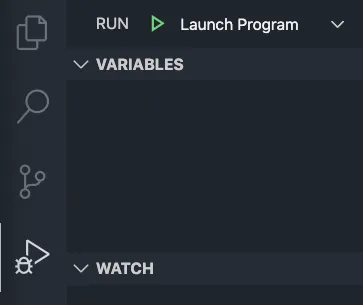
- We then click Run and Debug in the panel that appears.
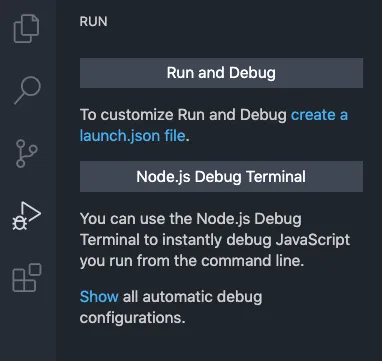
- Lastly, we select Node.js from the list that appears.
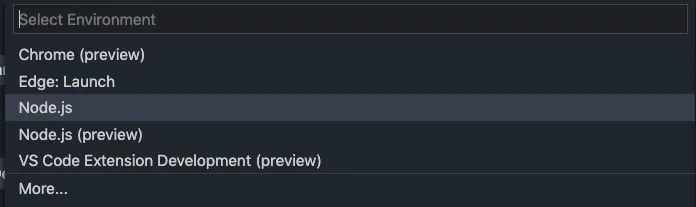
The code is compiled, and the debugger starts. The execution breaks on the debugger statement:
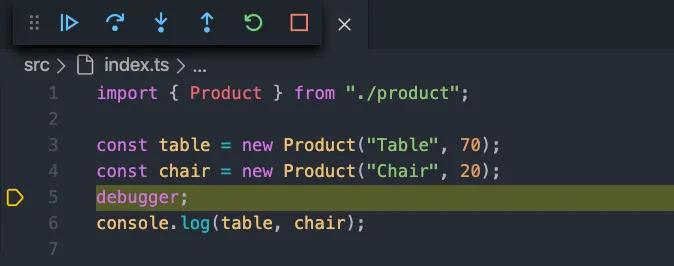
The code in the debug window is the TypeScript code rather than the transpiled JavaScript. The source map for this file has enabled us to debug the code in TypeScript.
Nice!
We can stop the debugger by clicking the red square icon.
Understanding a source map
Let’s have a closer look at the source map file.
If we look in the folder that has the transpiled JavaScript, we will see the source maps. These are files with a .map extension. If we open a source map file we will see it is in JSON format:
{ "version": 3, "file": "index.js", "sourceRoot": "", "sources": [ "../src/index.ts" ], "names": [], "mappings": ";;AAAA,uCAAoC;....""}`}Here are some key points about the source map:
- The reference to the JavaScript file is defined in a
filefield. - The reference to the TypeScript file is in a
sourcesfield. Notice that it references the file in the project structure. - The
sourceRootfield is the root path of the TypeScript files. - The
versionfield defines which version of the source map spec is being used. - The
namesfield is a list of identifiers used in the source code that were changed or removed from the output. - The
mappingsfield contains mappings for every position in the JavaScript code back to positions in the TypeScript code. These are base64 encoded variable-length quantities.
Let’s open the transpiled JavaScript file. We will notice the comment at the bottom of it:
//# sourceMappingURL=index.js.mapThis is the reference to the source map.
Including source maps in generated JavaScript
There is a compilation option called inlineSourceMap that will put the source map inside the transpiled JavaScript file. Let’s explore this.
Let’s replace the sourceMap with inlineSourceMap in tsconfig.json:
{ "compilerOptions": { ... "inlineSourceMap": true }, ...}Let’s run the TypeScript compiler:
npx -p typescript tscWe will notice that the compiler hasn’t generated any .map files. Instead, the source maps are at the bottom of the JavaScript files.
//# sourceMappingURL=data:application/json;base64,eyJ2ZXJzaW9uIjozLCJm...Including TypeScript code in source maps
By default, the TypeScript code isn’t included in the generated source maps. Instead, the source maps reference the TypeScript code in the project. This is fine for local development, but not ideal if you are trying to debug a problem when the code has been deployed to a web server. We can use the inlineSources option to change this behavior.
Let’s remove inlineSourceMap and add the following to tsconfig.json:
{ "compilerOptions": { ... "sourceMap": true, "inlineSources": true }, ...}The inlineSources option can be used with sourceMap or inlineSourceMap.
Let’s rerun the TypeScript compiler:
npx -p typescript tscIf we look at the source maps, they contain the TypeScript code rather than referencing it. The TypeScript code is contained within the sourcesContent field in the JSON.
{ ... "sourcesContent":[ "import { Product } from \"./product\";\n\nconst table = new Product(\"Table\", 70);\nconst chair = new Product(\"Chair\", 20);\ndebugger;\nconsole.log(table, chair);\n" ] }Cool!
Changing the location of source maps
By default, the transpiled JavaScript expects source maps to be in the same directory. The behavior can be changed with the mapRoot option.
Let’s add this option to tsconfig.json:
{ "compilerOptions": { ... "mapRoot": "maps" }, ...}Let’s rerun the TypeScript compiler:
npx -p typescript tscThe location of the source maps hasn’t changed as we might have expected - they are still next to the JavaScript. The mapRoot option doesn’t change where the source maps are placed - it changes how the JavaScript file references the source map.
Let’s open a JavaScript file and look at source map reference at the bottom.
//# sourceMappingURL=../src/maps/index.js.mapThe source map is now expected to be in a maps folder in this example.
Changing the source map reference for TypeScript code
As mentioned earlier, a source map references the TypeScript code in the project structure by default. The location of the TypeScript code can be changed using a sourceRoot option.
Let’s remove the mapRoot and inlineSources options and add the following to tsconfig.json:
{ "compilerOptions": { ... "sourceMap": true, "sourceRoot": "ts" }, ...}Let’s rerun the TypeScript compiler:
npx -p typescript tscThe sourceRoot field within the source map is now updated with the path we specified.
{ ... "sourceRoot":"ts/", ...}Wrap up
Source maps allow TypeScript code to be debugged and switched on using the sourceMap or inlineSourceMap options.
inlineSources is useful when debugging code on a deployed server.
mapRoot is useful with sourceMap when debugging code on a deployed server, and the map files aren’t next to the JavaScript files.
sourceRoot is useful with sourceMap when debugging code on a deployed server, and the TypeScript files are in a different relative location to the local project.
Learn React with TypeScript - 3rd Edition
NewA comprehensive guide to building modern React applications with TypeScript. Learn best practices, advanced patterns, and real-world development techniques.
View on Amazon